Introduction
The platform ZakodixOMS is a comprehensive platform for video surveillance and satellite monitoring of vehicles. It includes functionality for object control and tracking, providing detailed information about the object both in real-time mode and historical data for specified periods.
Authorization
To log into ZakodixOMS, the user needs to authenticate by filling in the fields Email and Password.
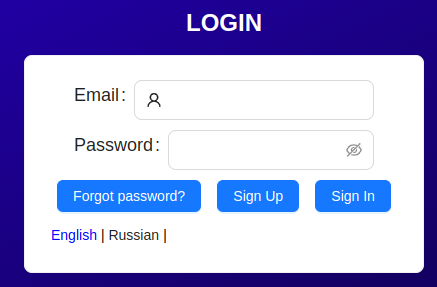
After filling in all the information, click the Login button.
Registration
To register a new user in the system, click the Sign Up button and fill in the necessary fields in the opened form.
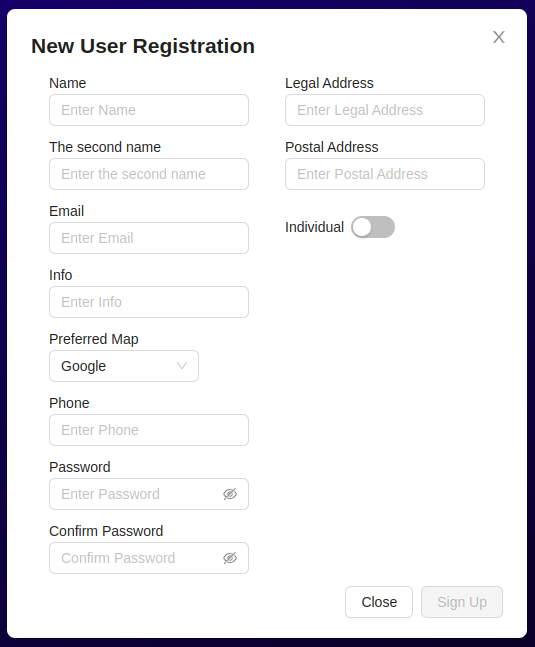
- The field
Preferred mapis required to select a provider of geographic maps. - When changing the field
IndividualtoLegal entity, additional fields necessary for filling in will appear. - The password must be at least 8 characters long.
Password Recovery
To recover the password, click the Forgot password? button. In the appeared window, write your email specified during registration.
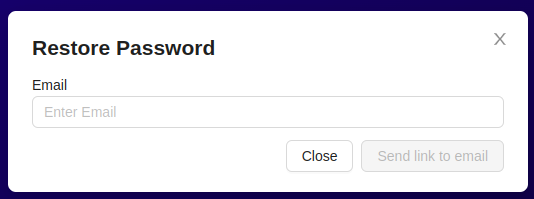
After that, click the Send link to email button.
You will receive a link to reset your password by email, after clicking on which you will be able to specify a new password to log in.
Platform Interface
The platform interface consists of several visual blocks:
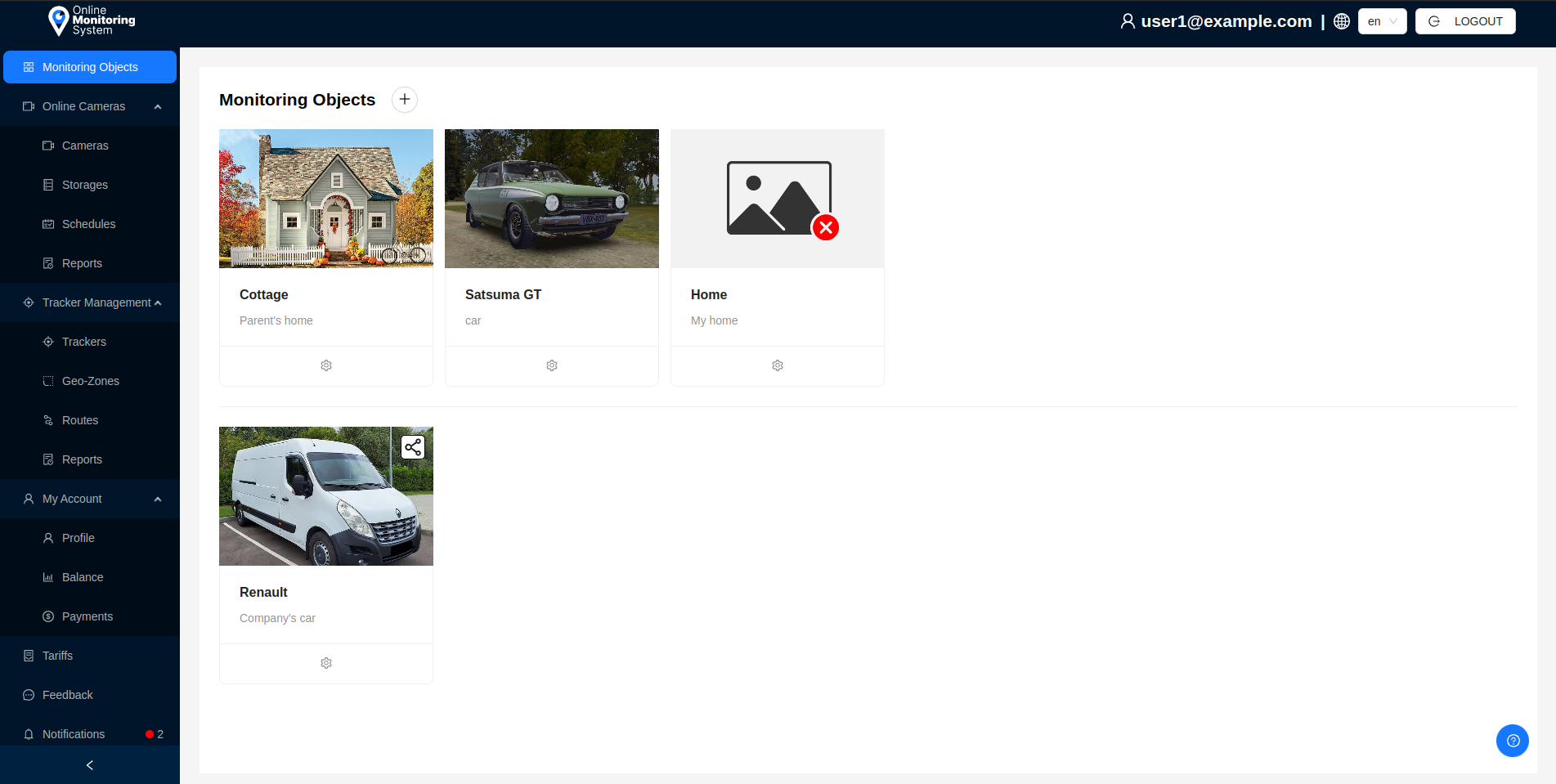
- Side navigation panel:
Monitoring objects- transition to the list of user's monitoring objects.Online cameras- category of functionality related to video surveillance and camera management.Cameras- transition to the list of user's cameras.Storages- transition to the list of user's storages.Schedules- transition to the list of schedules for user's cameras.Reports- transition to the page for generating reports on cameras.Tracker Management- category of functionality related to object monitoring system and tracker management.Trackers- transition to the list of user's trackers.Geo-Zones- transition to the list of user's geo-zones.Routes- transition to the page for forming routes for user's trackers.Reports- transition to the page for generating reports on trackers.My account- category of functionality related to user account management.Profile- transition to the profile editing form for the user.Balance- transition to the list of user's operation history and balance viewing.Payments- transition to the page for tariff payments for trackers/cameras.Tariffs- transition to the list of user's tariffs.Feedback- transition to the feedback form.Notifications- transition to the list of user's notifications.
- Top information panel:
- Information(email) of the current user.
- Dropdown menu for selecting the current platform language.
Logoutbutton to log out and return to the login page.
- Main window for working with the platform.

The main window also has a Documentation button to familiarize the user with the functionality if necessary.
The elements of the navigation and information panels may differ for a user with Administrator rights. See more details in section Administrator.